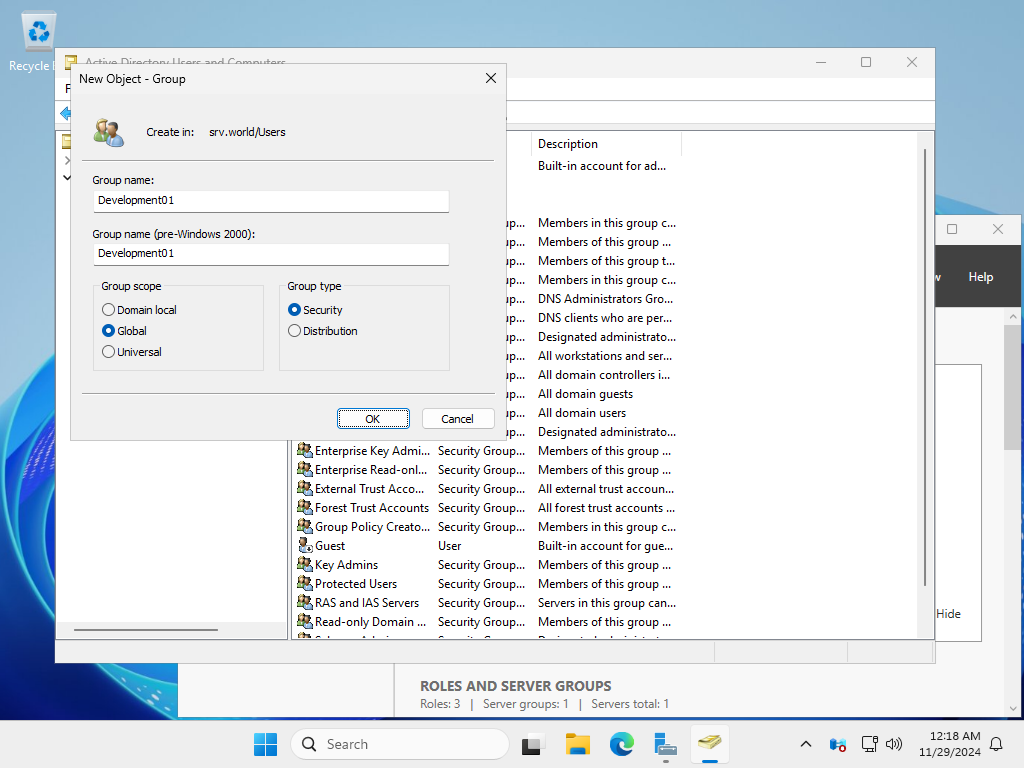
# show current group list
PS C:\Users\Administrator> Get-ADGroup -Filter * | Format-Table DistinguishedName

DistinguishedName
-----------------
CN=Administrators,CN=Builtin,DC=srv,DC=world
CN=Users,CN=Builtin,DC=srv,DC=world
CN=Guests,CN=Builtin,DC=srv,DC=world
CN=Print Operators,CN=Builtin,DC=srv,DC=world
CN=Backup Operators,CN=Builtin,DC=srv,DC=world
CN=Replicator,CN=Builtin,DC=srv,DC=world
CN=Remote Desktop Users,CN=Builtin,DC=srv,DC=world
CN=Network Configuration Operators,CN=Builtin,DC=srv,DC=world
CN=Performance Monitor Users,CN=Builtin,DC=srv,DC=world
.....
.....

# for example, add [Development01] group
PS C:\Users\Administrator> New-ADGroup Development01 `
-GroupScope Global `
-GroupCategory Security `
-Description "Database Admin Group"

# verify
PS C:\Users\Administrator> Get-ADGroup -Identity Development01

DistinguishedName : CN=Development01,CN=Users,DC=srv,DC=world
GroupCategory     : Security
GroupScope        : Global
Name              : Development01
ObjectClass       : group
ObjectGUID        : a64cf4f2-45a4-4924-8e99-22eb6cf6419e
SamAccountName    : Development01
SID               : S-1-5-21-2649012655-406810028-4197379243-1111


# to add a member to a group, run like follows
PS C:\Users\Administrator> Add-ADGroupMember -Identity Development01 -Members Serverworld

# verify
PS C:\Users\Administrator> Get-ADGroupMember -Identity Development01

distinguishedName : CN=Server World,CN=Users,DC=srv,DC=world
name              : Server World
objectClass       : user
objectGUID        : 49f5d4ec-a6d0-40d2-818d-4af624250718
SamAccountName    : Serverworld
SID               : S-1-5-21-2649012655-406810028-4197379243-1103


# to delete a member from a group, run like follows
PS C:\Users\Administrator> Remove-ADGroupMember -Identity Development01 -Members Serverworld

Confirm
Are you sure you want to perform this action?
Performing the operation "Set" on target "CN=Development01,CN=Users,DC=srv,DC=world".
[Y] Yes  [A] Yes to All  [N] No  [L] No to All  [S] Suspend  [?] Help (default is "Y"): Y


# to delete a group, run like follows
PS C:\Users\Administrator> Remove-ADGroup -Identity Development01

Confirm
Are you sure you want to perform this action?
Performing the operation "Remove" on target "CN=Development01,CN=Users,DC=srv,DC=world".
[Y] Yes  [A] Yes to All  [N] No  [L] No to All  [S] Suspend  [?] Help (default is "Y"): Y
|